Managing Candidates
The Candidates section in TalentRanx gives you a central view of all individuals who have been assessed across your CV reviews. From here, you can review scores, track recommendations, and drill into detailed assessment results.
Global Search
At the top of the screen, the Global Search bar lets you search across candidates by name without switching modules.
Viewing All Candidates
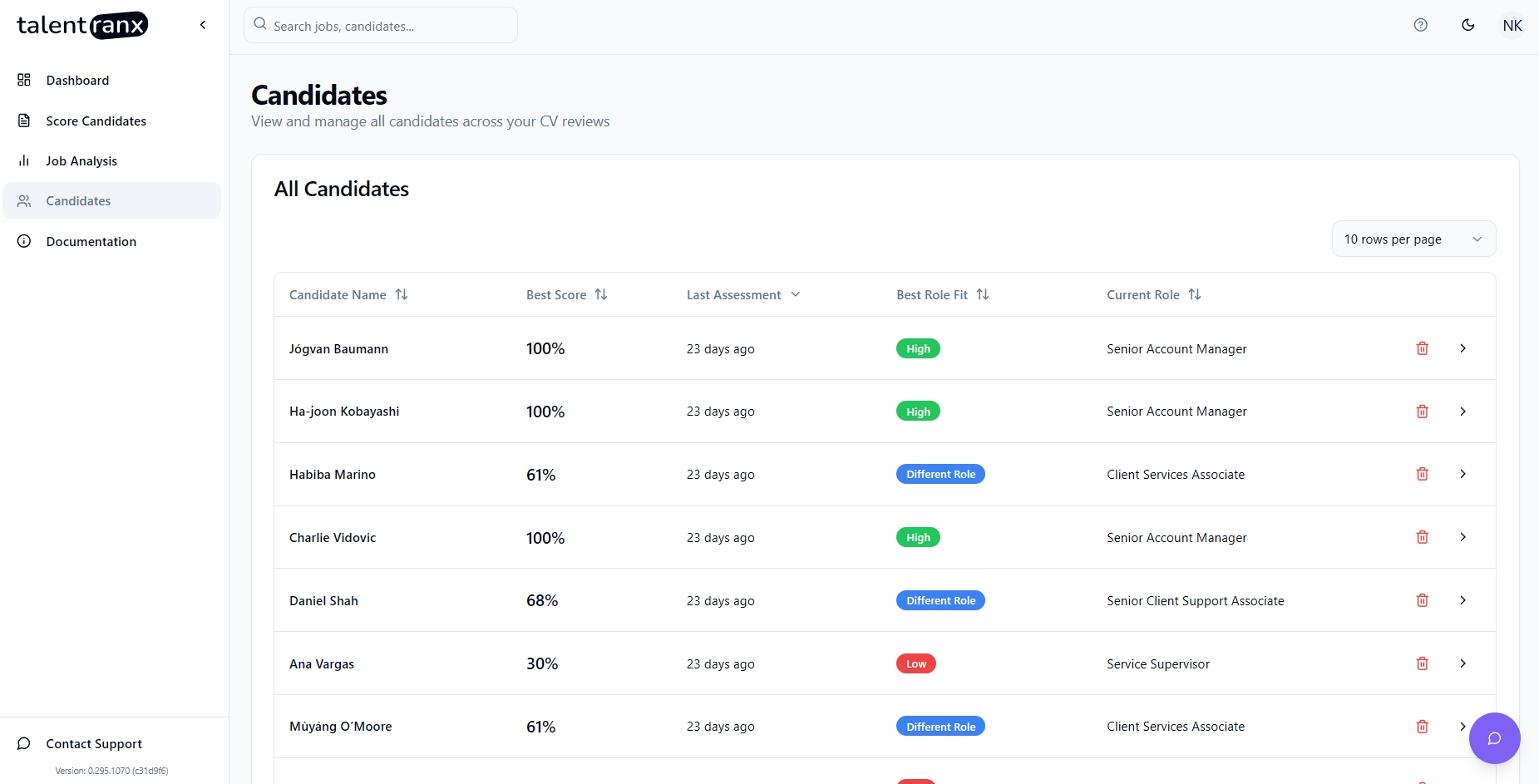
From the left sidepanel, click on Candidates to display a list of all candidates. This table shows:
- Candidate Name – Click to open the candidate’s full history.
- Best Score – The highest score achieved in any assessment for that candidate.
- Last Assessment – When the most recent scoring was completed.
- Best Role Fit – The strongest alignment to a role to date (e.g., High fit, Moderate, suited to a Different Role or low fit).
- Current Role – Job title extracted from the candidate’s resume.
You can delete a candidate here and that will remove their data entirely from the system.
You can adjust how many rows appear per page using the dropdown in the top-right.
Viewing a Candidate’s History
From the list of all candidates opened above, click a candidate’s name to open their Candidate Detail view. This shows all past assessments for that candidate including:
- Job Title – The role the candidate was scored against.
- Review Name – The scoring review or session name.
- Score – Percentage match for that job.
- Date of Assessment – The date of the assessment.
- Role Fit – The assessed alignment between the candidate and the job requirements ie; High, Moderate, Low or suited to a Different Role.
- Actions – Click the eye icon to view the assessment results.
Reviewing an Assessment for a Candidate
From the list of all assessments for a candidate, clicking on a row will open their scoring details for that specific assessment. The results card displays:
- Role Applied For – Job title and company details.
- Overall Score, Role Fit, Areas for Clarification – The key results of the assessment. The Areas for Classification are talking points with the candidate if they are interviewed to get their perspective on items not covered well in their resume
- Candidate Information – Name, current role, and other key profile info.
- Summary – Narrative overview of strengths and gaps.
- Areas for Clarification – Specific points the AI flagged for review.
- Employment History – Extracted career timeline.
- Education – Extracted qualifications.
- Requirement Matching – Each requirement’s importance, fit level, score, and justification text taken from the candidate's resume.
Exporting Results
The above card details are available as a PDF by clicking:
- Download PDF – Generate a report before an interview, for sharing or storing in other systems.
Tips
- Export high-fit candidates’ PDF reports for panel interviews.
- You can delete a candidate's data from the system if requested or you have completed all assessments on a role.