Navigating the User Interface
TalentRanx’s user interface layout is consistent, so once you’re familiar with the main sections, you can move quickly between them.
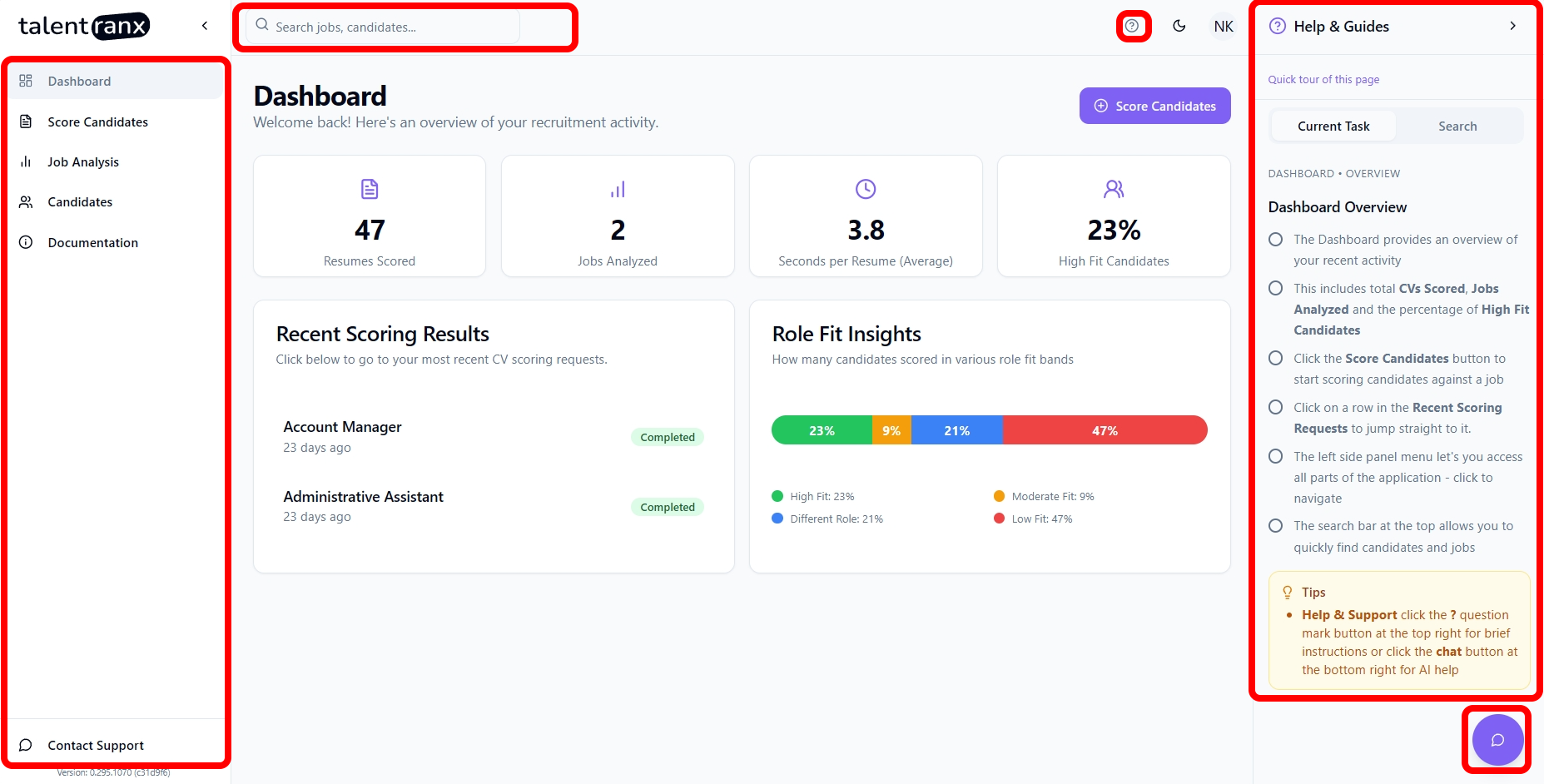
Sidebar Navigation
The left-hand sidebar is your main navigation hub. It provides quick access to all key modules:
- Dashboard – A summarized overview of all your recruitment activities.
- Score Candidates – Score resumes against a specific job, view results, download PDF's.
- Job Analysis – Create, edit, and manage job descriptions, download PDF's.
- Candidates – View and manage assessments by candidate.
- Documentation – Get help on how to use the application.
The sidebar can be collapsed to maximise workspace for reviewing candidates or job analyses.
Dashboard Overview
When you log in, you land on the Dashboard. It contains:
- Score Candidates – A shortcut button to jump straight to assessing candidates for a role.
- Key Metrics – CVs scored, jobs analysed, average processing time per CV, and high-fit candidate percentage.
- Recent Scoring Results – Your latest scoring sessions with status indicators (Completed, In Progress, Error).
- Scoring Insights – A visual breakdown of candidate recommendation categories.
Global Search
At the top of the screen, the Global Search bar lets you search across jobs, candidates, and scoring reviews without switching modules.
Contextual Help and Dark Mode
The "?" Help Icon in the top-right (and contextual help panels within pages) provides step-by-step guidance relevant to the screen you’re viewing, including links to knowledge base articles.
Light or dark mode can be toggled by pressing the sun and moon buttons near the top right hand corner of the app.
Tips
- Use the sidebar for quick navigation between steps in your recruitment process.
- Collapse the sidebar when reviewing tables or detailed candidate assessments.